

Where they are right now
Open the map and check the latest available location instead of calling again and again.
#1 parental control app
Kid Security connects a parent app with Tigrow on the child's phone. Use location, safe-zone alerts and agreed screen-time rules with the platform conditions made clear from the start.
Open the map and check the latest available location instead of calling again and again.


See how much time goes on games and social apps. Set a limit your family has agreed together.
Open the map and check the latest available location instead of calling again and again.
See how much time goes on games and social apps. Set a limit your family has agreed together.
Keep an eye on your child’s safety and react in time.

See the available location information in the parent app and check when the point was last updated.

Mark places such as home or school and get an alert when your child arrives or leaves. On the free plan, alerts work for one zone.

Set app and game limits on Android. On a child’s iPhone, limits use Apple Screen Time and the parent needs an iPhone or iPad.

When your child does not pick up, send a loud signal: their phone rings at full volume, even on silent. Works on Android and iPhone.

Your child can send you an SOS with one tap in Tigrow, and you see where they are.

When your child uses Android, you can see incoming messages from supported messengers, as they appeared in notifications. Outgoing messages are not shown.

App password on Android: if it is removed, the parent is notified straight away.

A parental-control setup works better when the child knows what is installed and what the family has agreed. Tigrow gives the child a visible part of the arrangement instead of leaving every rule in the parent app.

The child can choose a goal and work towards it with the reward set by the parent.

Homework, tidying and training can become tasks with a reward the parent sets.

The child has an SOS action as part of the parent–child safety setup.
How the service helps in everyday life.
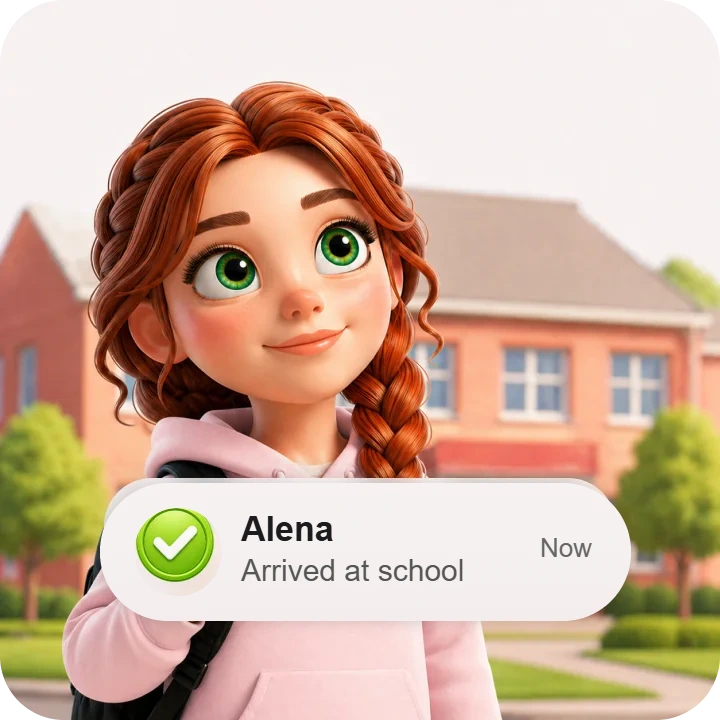
An arrival alert can answer the practical question before you start calling.
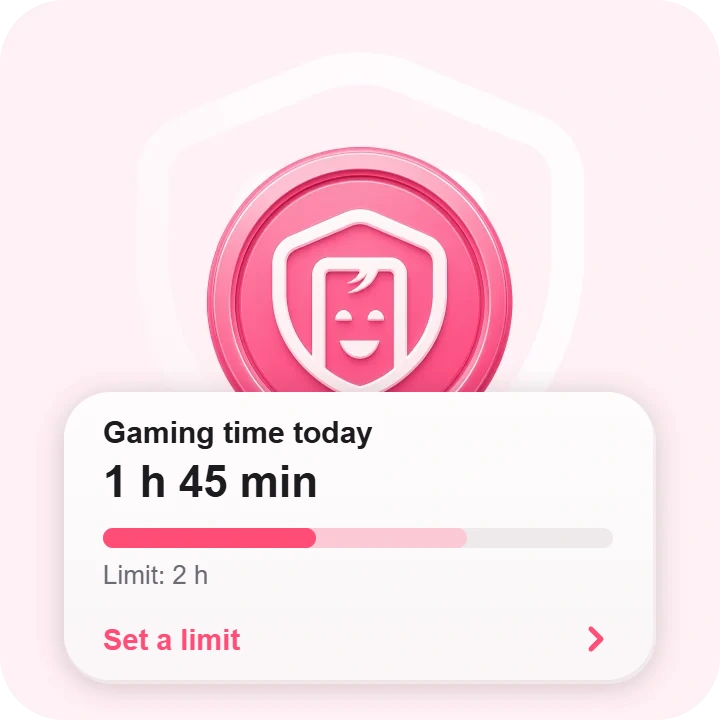
A limit or schedule can make the agreed boundary visible on the child's device.
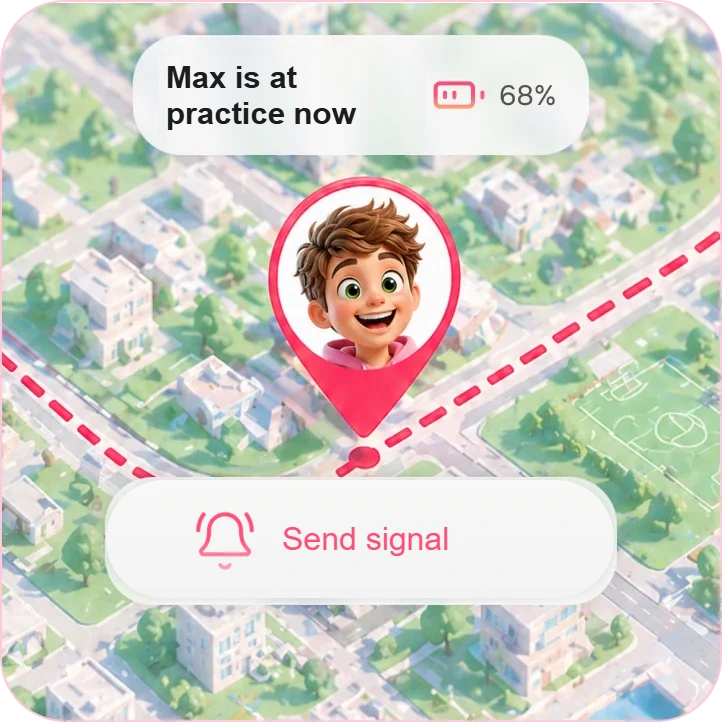
Check the latest available information before you decide what the silence means.
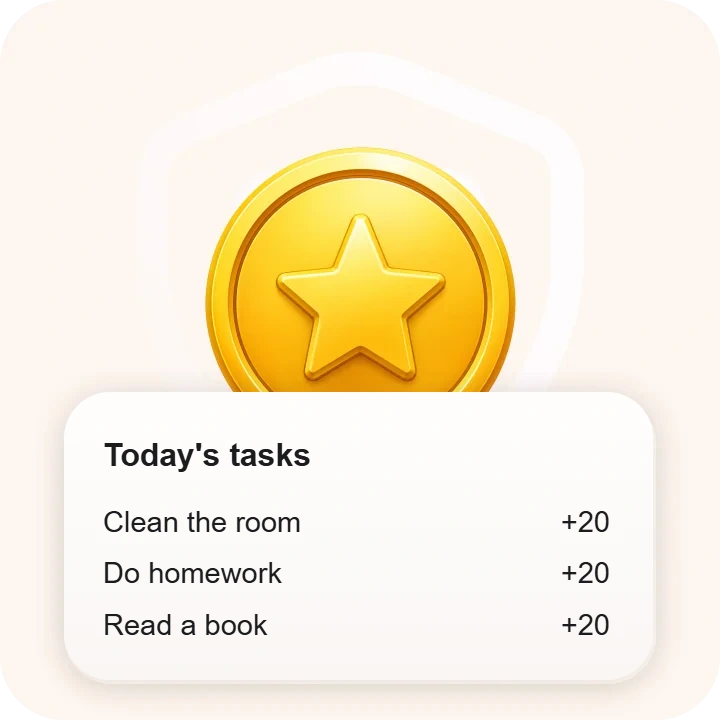
Put the agreed task and reward where the child can see them in Tigrow.
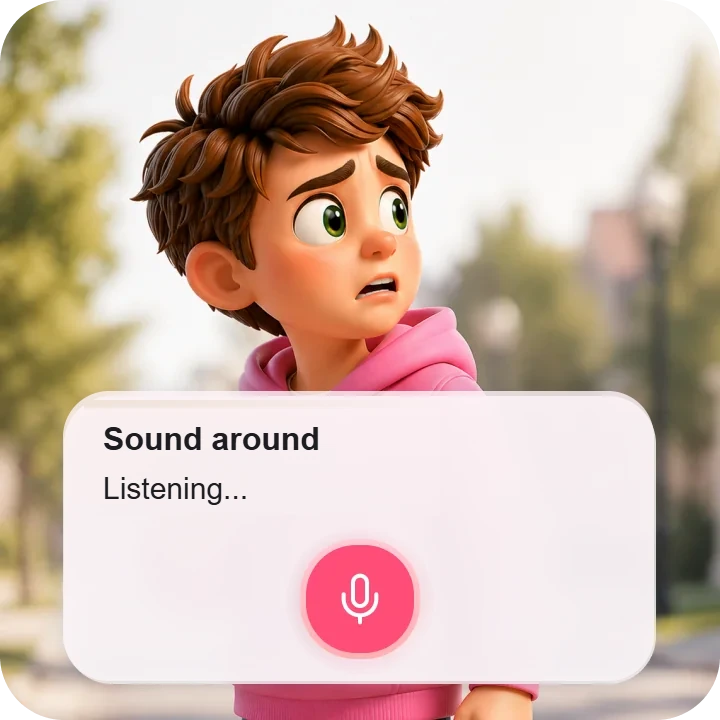
Send a loud signal: the phone rings at full volume and they call you back.
Simple setup and reliable protection for the whole family.

Download and set up the parent app first.

Download the child app and get it ready to pair.

Complete pairing in the current setup flow.

Check the permissions and device conditions shown in that flow.

Decide what the family will use and what remains private.
The parent app and child app work as a pair, but individual features have different platform conditions. Check the child’s device first, then check whether the parent device is also part of the requirement.
Kid Security helps parents stay close at important moments and build clear rules. We recommend discussing settings with your child and using the app as a family safety tool.
2 min read

2 min read
2 min read

2 min read
2 min read
Install Kid Security and Tigrow, connect your child and try the basic features.
A subscription unlocks advanced control and extra features.

Basic features

Advanced features
Annual subscription is 20% better value
Kid Security and Tigrow help families feel calmer
and more confident about their children’s safety.
In short: how the app helps families feel calmer.
Kid Security is a parental control app for families with school-age children. It shows where your child is and how much time goes on games and apps, and helps you agree clear rules instead of arguing about the phone every evening.
It works as a pair: Kid Security on the parent’s phone and Tigrow on the child’s. Tigrow turns homework and chores into tasks with rewards and gives the child an SOS button.

Setup takes a few minutes. After that the app works in the background and only asks for your attention when it matters: your child arrives at school, leaves a safe zone, reaches a game limit or sends an SOS.
Kid Security is not a tool for secret checks. It is installed openly, and the rules work best when you set them together with your child.

Kid Security and Tigrow help families feel calmer
and more confident about their children’s safety.
Forbes Kazakhstan
MyBusiness.kz
Aleminform.kz
El.kz
The Village KZ
Aleminform.kz
Install both apps, pair them once, and let the alerts handle the rest of the school year.
Parental control is a family setup that helps a parent manage agreed safety features on a child’s device. Kid Security uses a parent app and Tigrow on the child’s phone. Depending on the device and permissions, the setup can include location, alerts and screen-time tools. It is not a way to control every part of a child’s life.
The parent-and-child setup has Android and iPhone flows, but features have different conditions. For example, incoming message alerts depend on the child using Android, while Screen Time on a child’s iPhone requires a parent iPhone or iPad.
Tigrow is the child app. It is installed on the child’s phone, shows them the tasks and rewards you set and gives them an SOS button.
Built-in controls, Apple Screen Time on iPhone and Google Family Link on Android, are free and work inside one platform. Kid Security puts children on Android and on iPhone into one parent app, with location, safe-zone alerts, an SOS button and tasks with rewards in Tigrow alongside the limits. On a child's iPhone, Kid Security still sets limits through Apple Screen Time.
Start with your child's phone. On Android, Kid Security sets app limits and schedules, shows location and safe-zone alerts, and your child gets an SOS button in Tigrow. On an iPhone, limits run through Apple Screen Time and you need an iPhone or iPad yourself; location, alerts and SOS work with any parent phone. The core features are free to start, so you can try the setup with your child before choosing Premium.
Yes. The free plan includes connecting your child, location on the map, safe zones with alerts for one zone, unlimited child profiles, the SOS button and an app password on Android. Premium adds app and game limits, alerts for every zone and the loud signal.
Check the child’s device, the parent-device condition, the permissions required and the feature limits. Check how your family’s data is handled too: Kid Security is run by Kid Security Limited, registered in Astana, Kazakhstan, and its privacy policy states that personal data is not sold or shared with advertising networks. Explain the setup openly and agree what the family will use it for before you enable a control.
No. Tigrow, the child app, is installed openly and stays visible on the child’s phone. Kid Security is built to be used with your child’s knowledge, so explain the setup together before you start.
It depends on the phones in your family. Google Family Link is free and built to manage a child’s Android phone, with app approvals, daily limits and content filters. Kid Security puts children on Android and on iPhone into one parent app and adds location, safe-zone alerts, an SOS button and tasks with rewards in Tigrow. On a child’s iPhone, Kid Security sets limits through Apple Screen Time, so the parent needs an iPhone or iPad.
Install the apps on parent and child devices to stay connected and keep your family safer.


